How to extract audio from a video
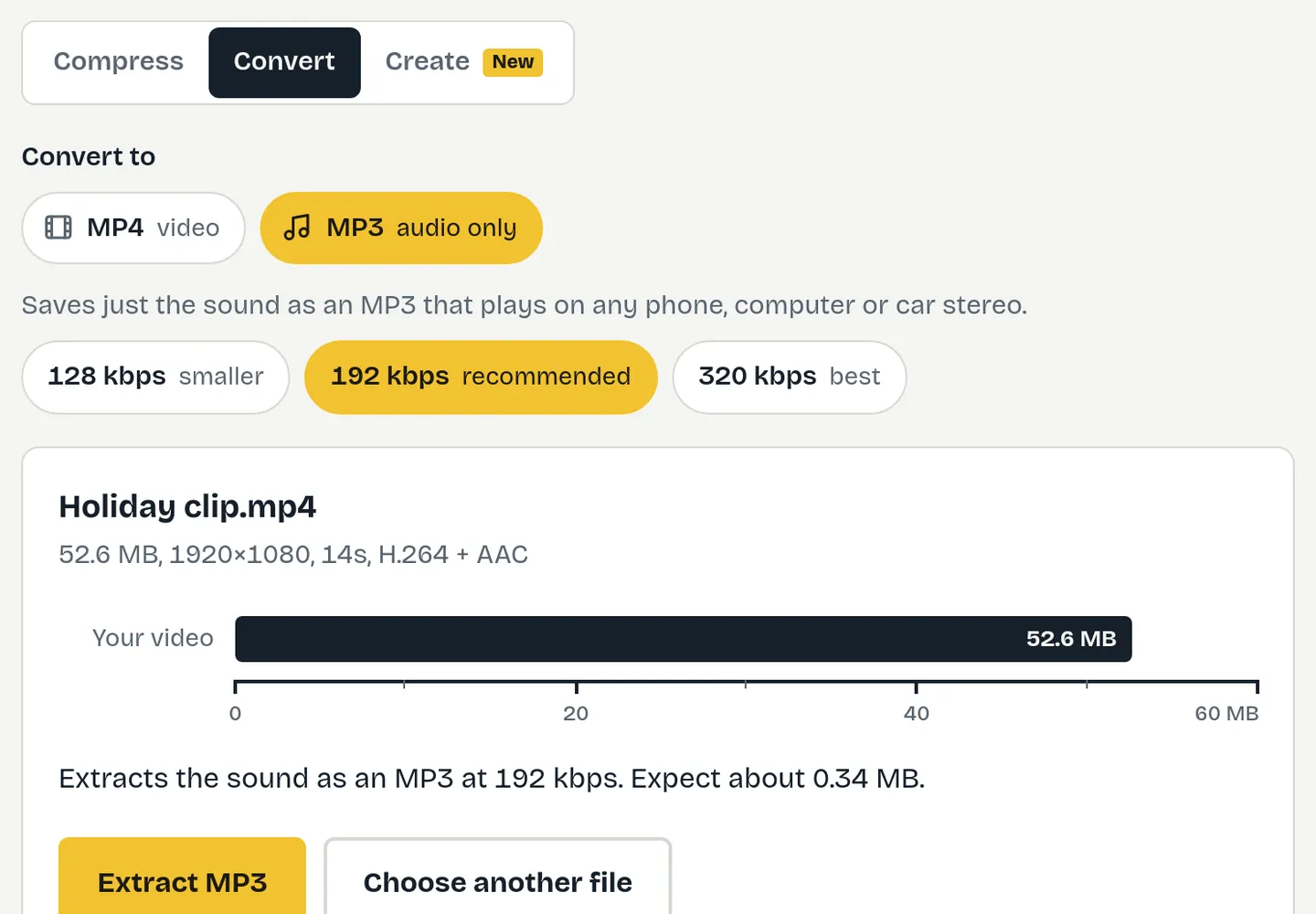
- MP3 is already selected. Choose the quality: 128 kbps for speech, 192 kbps for most things, or 320 kbps for music.
- Drop your video in. You’ll see how long it is and roughly how big the MP3 will be.
- Press “Extract MP3”, listen to the preview, and save it.
Which quality should I choose?
| Quality | Best for | Size per minute |
|---|---|---|
| 128 kbps | Speech: lectures, meetings, interviews, voice notes | about 1 MB |
| 192 kbps | Most things, including music from phone videos | about 1.4 MB |
| 320 kbps | Music where you want the best MP3 quality | about 2.4 MB |
An MP3 can’t sound better than the sound in the original video. If the video was recorded on a phone, 192 kbps captures everything there is to hear; 320 kbps only helps when the source sound is high quality.
Good uses
- Lectures and talks you recorded, to listen to on the go.
- Meeting recordings, when you only need the conversation and the file is too big to share.
- Voice notes and interviews recorded with your phone’s camera.
- Your own music and performances, to share or put on a playlist.
Only extract audio from videos you made or have permission to use. Copying music or audio from other people’s videos may break copyright and the rules of the site you got it from.
Why MP3?
MP3 plays on practically everything: phones, computers, car stereos, smart speakers and old MP3 players. Other formats can be slightly smaller at the same quality, but none are as universally supported, which matters when you’re sending a file to someone else.
Need it smaller?
Choose 128 kbps, which roughly halves the size compared with 320 kbps. A one-hour lecture at 128 kbps is around 58 MB; a four-minute song at 192 kbps is under 6 MB, small enough for almost any email or chat app.
Extracting audio on your phone
On Android, open fitvideo.app/video-to-mp3/ in Chrome, choose the video from your gallery, and save the MP3 to your phone. It then appears in your files and most music apps. On iPhone, support depends on your iOS version; if your browser isn’t supported, use a computer and send the MP3 to your phone afterwards.
Questions
Which video formats can I use?
MP4, MOV, WebM, MKV and M4V. The sound can be AAC, Opus, MP3 or most other common formats.
What if the video has no sound?
FitVideo checks before starting and tells you if there’s no sound to extract.
Is the MP3 the same length as the video?
Yes. The whole soundtrack is saved. To keep just part of it, trim the video first; a trim tool is coming soon.
Is it free?
Yes. Free, with no sign-up and no watermark.
Is my video uploaded anywhere?
No. The tool runs inside your browser and uses your device’s own video encoder. Your file is read from your device, processed there and saved back. You can confirm this in your browser’s network panel: nothing is sent while a video is processed.
Which browsers does it work in?
It works best in Chrome and Edge on a computer. It needs a browser feature called WebCodecs. If your browser doesn’t have it, the page tells you before you start.
Can I choose the bitrate?
Yes: 128, 192 or 320 kbps. 192 kbps is the best balance for most videos.